
What is PrinterLogic?
PrinterLogic makes adding and removing printers super easy. No more hunting for drivers or dealing with complicated setups!
1 Find the PrinterLogic Icon
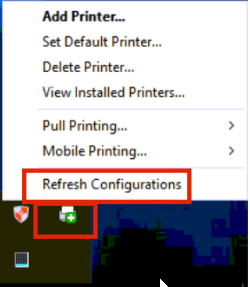
Look for the PrinterLogic icon in your system tray (bottom-right corner of your screen, near the clock).

2 Right-Click and Select "Add Printer"
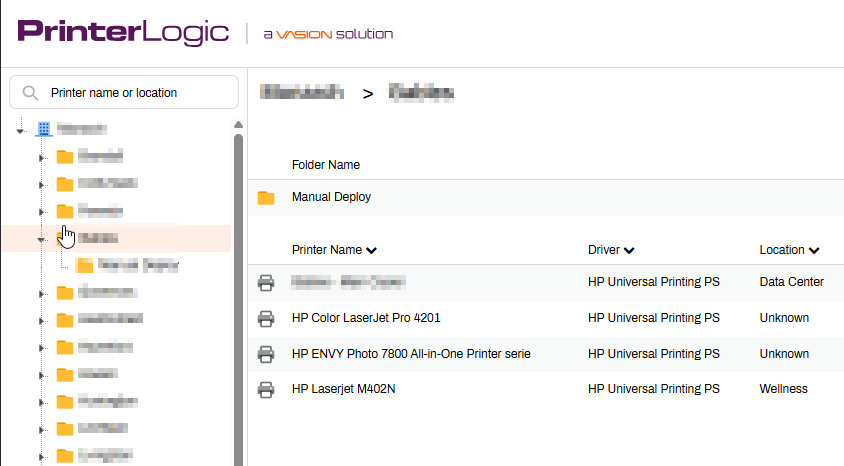
Right-click on the PrinterLogic icon and click "Add Printer". This will open a web page showing all available printers.
3 Choose Your Printer and Install
Find the printer you want from the list and click on it to install. PrinterLogic handles everything automatically - you're done!
That's it!
Your printer is now ready to use. You can print from any application and your new printer will appear in the print dialog.
🔧 Troubleshooting
⚠️ PrinterLogic Icon Missing or Not Working?
If you can't find the PrinterLogic icon or get error messages, contact your IT support or Service Desk. The software may need to be reinstalled or configured.
Can't Find a Printer?
Right-click the PrinterLogic icon and select "Refresh Configurations". This updates your printer list with any newly added printers.
Need to Set a Default Printer?
Right-click the PrinterLogic icon and choose "Set Default Printer" to select which printer your computer uses automatically.
Want to Remove Old Printers?
Right-click the PrinterLogic icon and select "Delete Printer". You can only remove printers that were installed through PrinterLogic.
🌐 Browser Extension Issues
If PrinterLogic doesn't work in your web browser, you might need to enable browser extensions:
- Microsoft Edge: Extensions are usually pre-installed, but you might need to "Enable" them
- Google Chrome: Extensions are usually pre-installed, but you might need to "Enable" them
